 Live Camera
Last updated: August 2026
Why bother, when the photo already moves?
Because it stops moving the moment it leaves your phone. Chat apps and social networks re-compress what you upload, and the video hidden inside a Motion Photo is exactly the kind of extra data that gets thrown away. Your friend receives a still and never knows there was more.
A GIF has no such problem. It is a picture format that happens to animate, so anything that can show an image can show it moving — chats, forums, comment boxes, presentation slides.
The trade is real, though, and worth knowing before you make one:
- No sound. GIFs have never carried audio.
- Fewer colours. The format is limited to 256 per frame, so smooth gradients — skies, skin, sunsets — pick up some banding.
- Bigger than you'd expect. A couple of seconds of GIF can outweigh the video it came from.
For sending a moment to someone, all three are fine. For keeping the best version, keep the original photo too.
Doing it in Live Camera
-
Open the photo
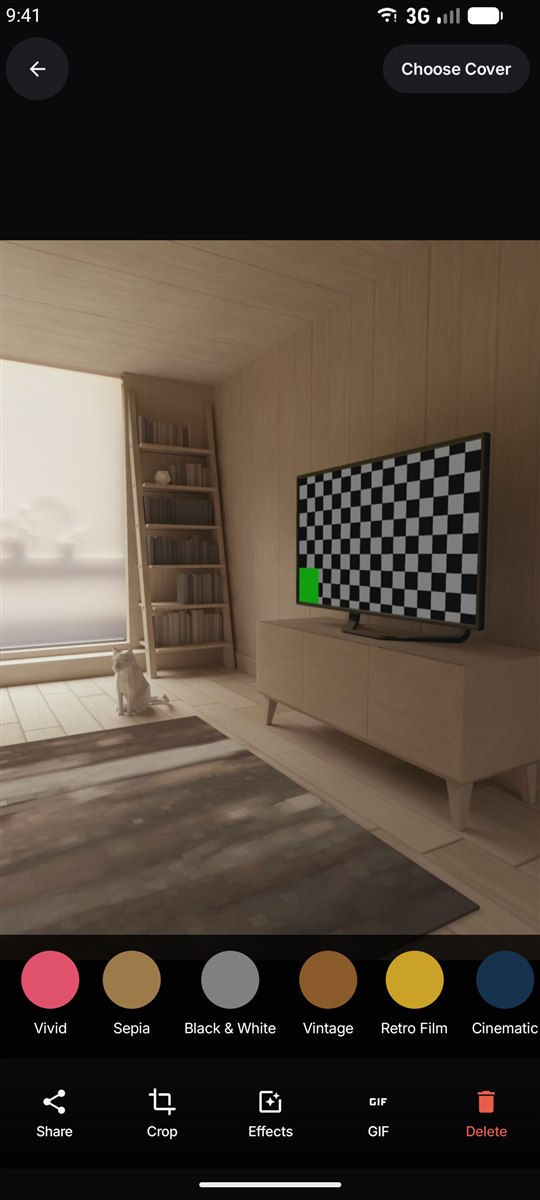
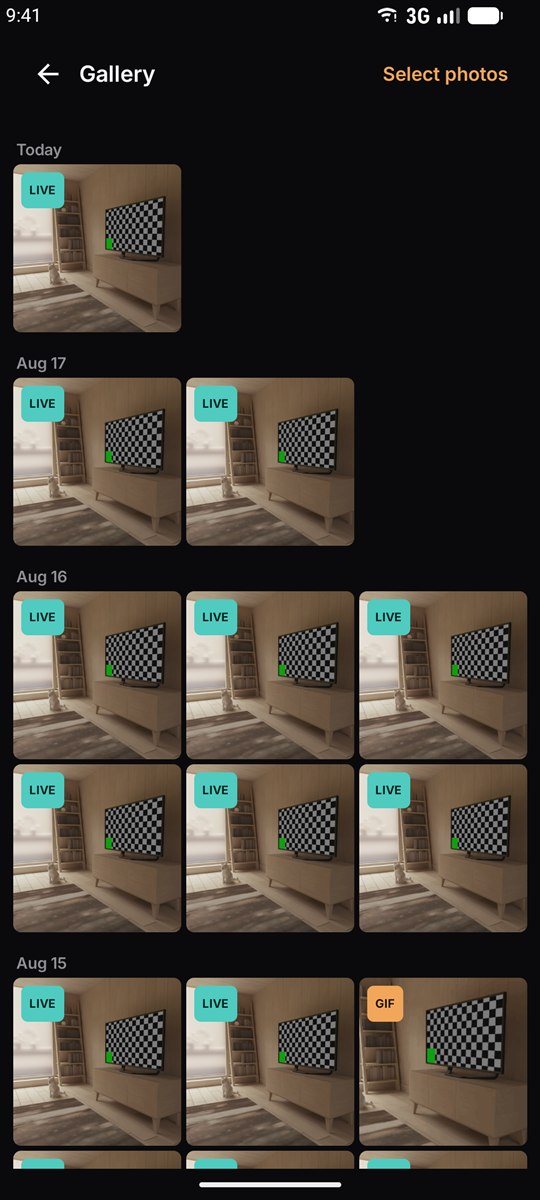
From the app's gallery, tap the Live Photo you want so it fills the screen.
-
Tap GIF
It sits in the row of actions along the bottom, between Effects and Delete. The app pulls frames out of the clip and encodes them into a loop.
-
Wait a few seconds
Encoding happens on the phone — nothing is uploaded, and there is no watermark on the way out.
-
Share it from your gallery
The GIF lands in your device gallery next to your photos, ready to attach anywhere.
Getting a GIF worth sending
- Pick a clip with one clear movement. Two seconds is not long. A single gesture — a turn, a laugh, a jump — loops far better than a busy scene.
- Set the cover frame first. Whatever frame you choose as the cover is where the loop reads from; picking a good one makes the whole loop look deliberate.
- Avoid heavy panning. When the whole frame moves, every pixel changes every frame, and the GIF gets large and mushy. Movement inside a steady frame compresses far better.
- Bright scenes hold up best. Low-light footage plus a 256-colour palette is where banding shows worst.
Other ways, and why they're worse
Online converters
They work, but you upload a personal photo to a stranger's server, wait, download the result, and often find a watermark on it. There is no reason to do this for a file already on your phone.
Google Photos
Google Photos can make an animation from several photos, which is a different thing — it will not turn one Motion Photo into a GIF.
Video editors
If you have already extracted the MP4, most video editors can export a GIF from it. That is several steps and a video-editor learning curve for the same result.
Common questions
Where does the GIF get saved?
To your device gallery, in the app's own folder, alongside your photos. It shows up in Google Photos and any other gallery app too.
Can I convert an iPhone Live Photo this way?
Only if the moving part actually made it to your Android phone, which usually it hasn't — the two files rarely travel together. If you have the MOV file, a video editor is your route.
Does it cost anything?
GIF export is part of the premium features, unlocked by the optional subscription that also removes ads. Taking and replaying Live Photos is free.